Dub YouTube Videos with Captions Into Your Language
Hear translated speech or keep the original voice with bilingual subtitles. AutoDub works inside the YouTube player on your computer.
Add to Chrome for FreeFree, No Daily Limit · One-Click Install · 42 Dubbing Languages
Before you start
AutoDub needs a YouTube caption track; auto-generated captions work too. Use desktop Chrome, Edge, Brave or Firefox with an internet connection. Live streams, the YouTube mobile app and dubbed-video downloads are not supported.
How to Use
1. Find the AutoDub Button
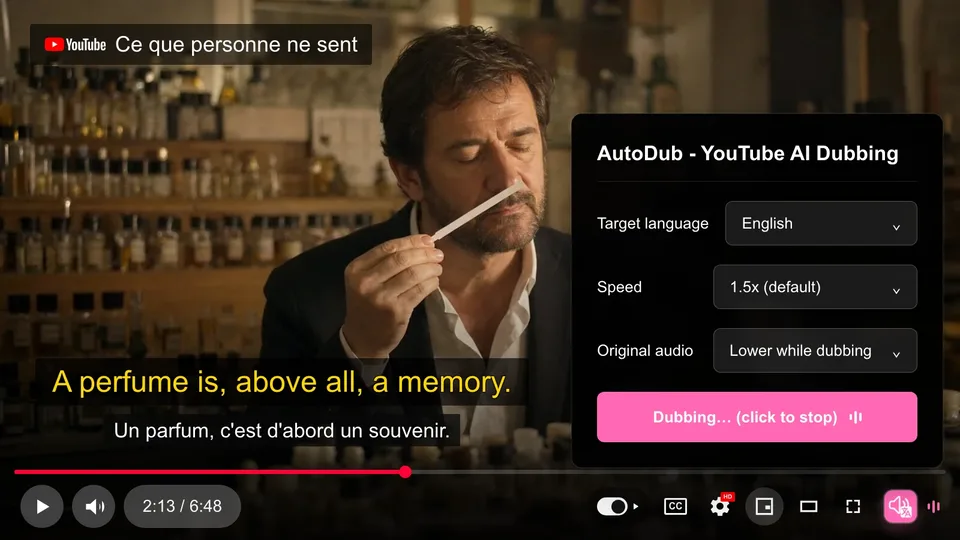
After installation, reload an open YouTube video. Move your pointer over the player to reveal the controls, then click AutoDub on the right. Use a video with a selectable caption track.
2. Select Target Language
In the panel, choose the language you want to hear and a voice. AutoDub detects the video’s original language automatically.
3. Press Play
After you pick a language, just press play. AutoDub translates as the video plays, so there is no waiting for the whole video to process.
Choose how you follow the video
Subtitles
- Keep the original voice and read the translation
- Compare both languages to check a name or phrase
- Use subtitles without turning on dubbing
AI Dubbing with AutoDub
- ✓Pick from male and female voices for each language
- ✓Eyes free to watch demos, slides, and code
- ✓The original soundtrack stays underneath the dub, at a volume you control
Dub YouTube Into 42 Languages
The original language is detected automatically, so you only pick the language you want to hear. Every language has male and female voices; the most-watched ones have several more, 90+ in all.
Frequently Asked Questions
The video has subtitles, but AutoDub says none are available
Look for a caption track under YouTube’s Settings → Subtitles/CC. Text burned into the picture is not a caption track, and AutoDub cannot transcribe the audio. Try another video with selectable captions.
The translation is loading, but I cannot hear the dub
Make sure the video is playing, dubbing is on, and neither the tab nor your device is muted. Check the dubbing volume too. Wait for the first section to load. If it keeps loading, check your connection and reload the page; if it still fails, send us the video URL and error message.
AutoDub User Guide