Translate YouTube Videos While You Watch
Hear tutorials, talks and interviews in your language with AutoDub. AI dubbing lets you follow the explanation while keeping your eyes on the video. Turn on bilingual subtitles whenever you want to read along.
Free, with no account, API key or daily video limit. Available for desktop Chrome, Edge, Brave and Firefox.
Why use AutoDub instead of YouTube’s auto-translate?
YouTube’s auto-translate gives you translated subtitles. AutoDub adds a way to listen: hear the explanation in your language while keeping your attention on the video. For a coding tutorial, a cooking demonstration or a lecture with slides, that means less time moving your eyes between the action and the text.
| What you want | YouTube auto-translate captions | What AutoDub adds |
|---|---|---|
| Follow the explanation by ear | Read translated captions while the video’s audio stays the same. | Hear a spoken translation so you can keep watching the code, diagram or demonstration. |
| Read both languages together | Choose one subtitle language in the player. | See the translation alongside the original to check a phrase without switching languages. |
| Make the translated voice comfortable to follow | Caption translation does not add a spoken voice. | Choose a dubbing voice and volume, then lower or mute the original speech. |
YouTube also offers translated audio tracks on some videos. Those are separate from caption auto-translate: you select from the tracks available for that video. With AutoDub, you choose your dubbing language and voice in the extension, with bilingual subtitles and original-audio controls in the same panel.
Want to listen instead of keeping up with subtitle lines? Start with AutoDub. It’s free, with no account or API key to set up.
YouTube’s own guides explain its caption settings and available audio tracks.
A real example: follow a talk in another language
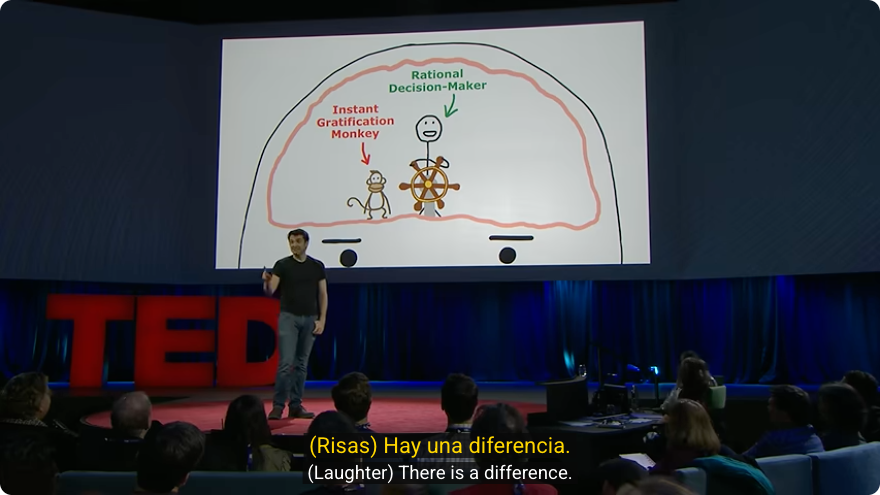
In Tim Urban’s TED talk, Inside the Mind of a Master Procrastinator, the speaker explains a diagram while talking in English. The capture above shows AutoDub’s Spanish translation alongside the original English caption.
- Source
- English speech and captions
- AutoDub setting
- Spanish dubbing; bilingual subtitles
- Captured
- October 19, 2026, in desktop Chromium with AutoDub 0.9.0
To try the same task, open the video on YouTube, start AutoDub and choose the language you want to hear. Keep both caption lines visible at first; then decide whether to keep reading or focus on the diagram. Use the transcript to return to a moment you want to hear again.
For a listening-focused setup, see how to watch without constantly reading subtitles. To choose between products, compare YouTube translator extensions.
How to translate a YouTube video with AutoDub
Go from watching in another language to listening in your own, directly in the YouTube player. Set up AutoDub once, then use the player button whenever you want a translation.
Install the extension and refresh YouTube
Add AutoDub to Chrome, Edge, or Brave from the Chrome Web Store, or install the Firefox version. If the video was already open, reload the page so the player can show the AutoDub button.
Open YouTube on your computer
Choose a tutorial, lecture, interview or another video you want to understand. Stay on the YouTube watch page: there is no need to copy the link into another tool.
Click AutoDub in the player controls
Move your pointer over the video to reveal its controls. The AutoDub icon is on the right side of the control bar. Click the icon to open AutoDub’s settings and start translating.
Choose your language and play the video
Set Dubbing language to the language you want to hear. Open Dubbing to choose a Voice and adjust the sound. If playback is paused, press play. The first translation and audio take a moment to load, and AutoDub prepares the next part while you watch. Click the AutoDub icon again to reopen the settings.
Set the sound and subtitles to suit you
- For subtitles without dubbing, open Dubbing and turn it off. The original audio stays as it is.
- Under Translated subtitles, choose Translation + original to see both languages, or Translation only to see only the translation.
- If the two voices clash, open Dubbing and set Original audio to Lowered while dubbing or Muted, and adjust Dubbing volume.
- To start dubbing without clicking each time, use the settings home page and turn on Auto-dubbing → Start automatically on foreign-language videos.
If the Chrome Web Store is blocked for you, follow the manual installation guide. For more controls, see the AutoDub user guide.
Translate a YouTube video to English, Hindi, or 40 other languages
Choose English, Hindi or any other supported language under Dubbing language in AutoDub. In subtitles-only mode that setting is called Translation language.
You don't need to change YouTube's language setting. Supported languages:
- Arabic
- Bengali
- Cantonese
- Chinese (Simplified)
- Chinese (Traditional)
- Czech
- Danish
- Dutch
- English
- Filipino
- Finnish
- French
- German
- Greek
- Gujarati
- Hebrew
- Hindi
- Hungarian
- Indonesian
- Italian
- Japanese
- Kannada
- Korean
- Malay
- Malayalam
- Marathi
- Norwegian
- Persian
- Polish
- Portuguese
- Romanian
- Russian
- Slovak
- Spanish
- Swedish
- Tamil
- Telugu
- Thai
- Turkish
- Ukrainian
- Urdu
- Vietnamese
Translate YouTube subtitles without an extension
YouTube also offers built-in subtitle options. To use them on the desktop website:
- Open the video and click the Settings gear.
- Open Subtitles/CC and choose your language.
- If it isn't listed, look for Auto-translate and pick a language there.
In the YouTube app on iPhone or Android, the same option usually sits under the gear icon → Captions → Auto-translate. The menu differs a little between app versions.
This changes the subtitle text only. The voice stays in the original language. Following subtitles can get tiring during a long lecture, especially if you also need to watch code or a demo. We compare dubbing and subtitles in more detail on the dubbing extension page.
The available options vary by video and device.
YouTube's help page covers caption and language settings in full.
Listen to a translated YouTube audio track
Some videos already offer another language as an audio track. If yours does, you can listen without installing anything:
- Open the video's Settings menu.
- Click Audio track, then choose your language.
If that menu or your language is missing, the video doesn't have that track, and changing YouTube's interface language won't create one. AutoDub offers another way to listen in your language, with your choice of voice and subtitle display.
For more detail, read how YouTube's automatic dubbing works or YouTube's audio-language instructions.
Translate while watching, without managing video files
Some online translators let you paste a YouTube link and download a translated video for editing or publishing. AutoDub is built for watching: stay in the player, choose your language and follow along without managing another video file.
| Feature | YouTube's auto-translate captions | AutoDub | File-export tools |
|---|---|---|---|
| What you get | Translated text to read | A voice in your language, plus bilingual subtitles | A translated video file to publish |
| Where it works | In the YouTube player | In the YouTube player | A separate website |
| How you start | Select a subtitle language | Install once, then open AutoDub in the player | Submit a link or upload a file |
| Waiting | None | A short load when you start | Processing time before you can download |
| Price | Free | Free, no daily limit | Depends on the tool |
If it's your own channel, look at YouTube Studio first. You can add translated subtitles there and check whether automatic dubbing is available for your channel.
Make AutoDub part of how you watch
Find AutoDub in the player
After installing, reload the video page and move your pointer over the player controls. Check that the extension is enabled and allowed to run on youtube.com.
Get the sound right
Press play, open Dubbing and check Dubbing volume. If you prefer to focus on the translated voice, set Original audio to Lowered while dubbing or Muted. Make sure the browser tab is unmuted.
Return to a useful moment
Open Transcript under Translated subtitles, then click a line to return to that point in the video. Keep both languages visible when you want to revisit a name, phrase or technical term.
Need help with a video? report the problem with the video URL, browser, target language, and any error message. That's what we need to reproduce it.
Common questions about translating YouTube videos
Why use AutoDub if YouTube already translates subtitles?
AutoDub adds spoken translation, so you can listen in your language and focus on the video. You can also show the translation alongside the original subtitles, choose a dubbing voice, and lower or mute the original speech. YouTube’s translated audio tracks are a separate feature and depend on the tracks available for the video.
Can I translate a YouTube video for free?
Yes. AutoDub offers AI dubbing and bilingual subtitles for free, with no account, API key or daily video limit.
Can I listen to the translation instead of reading subtitles?
Yes. AutoDub plays spoken translation while you watch in the YouTube player. Choose your dubbing language and voice, then lower or mute the original speech to focus on the translation.
Can I get subtitles without changing the original audio?
Yes. Open Dubbing and turn it off for subtitles only. Then choose a language under Translation language and a display option under Translated subtitles.
Which browsers can I use with AutoDub?
Use AutoDub on your computer in Chrome, Edge, Brave or Firefox. Install from the Chrome Web Store for Chromium browsers, or get the Firefox version from Mozilla Add-ons.
Do I need to upload or download the video?
No. AutoDub works directly in the YouTube player. Install the browser extension once, then use it while watching on YouTube.
Can I translate YouTube videos to English or Hindi?
Yes. Choose English, Hindi or another supported language under Dubbing language. AutoDub supports 42 languages, including Spanish, French, German, Japanese and Korean.
Can AutoDub start automatically?
Yes. On the settings home page, turn on Auto-dubbing → Start automatically on foreign-language videos.