YouTube dual subtitles
Dual subtitles on YouTube, with a voice in your language
YouTube shows one subtitle track at a time. AutoDub adds a second: your language on top, the original line underneath, matched sentence by sentence. Read both in silence, or turn on dubbing and hear the translation while the original stays on screen.
Free, no account needed. For Chrome, Edge, Brave and Firefox on your computer.
Switch between the three views
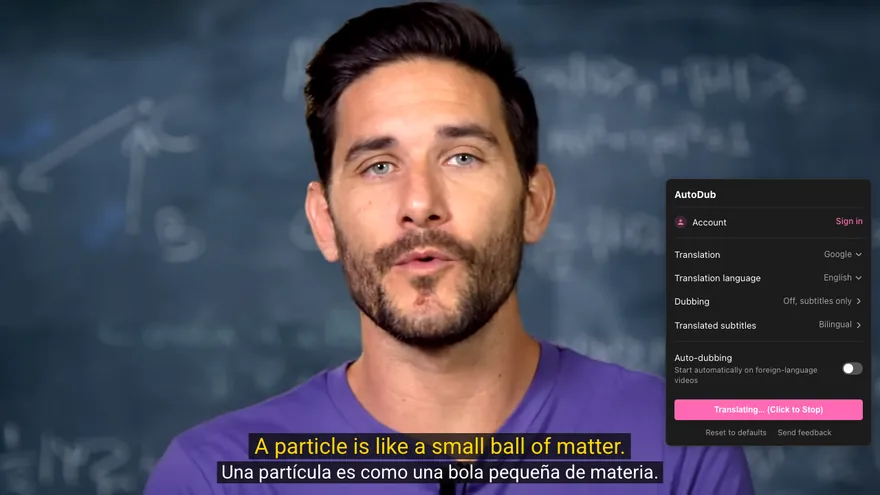
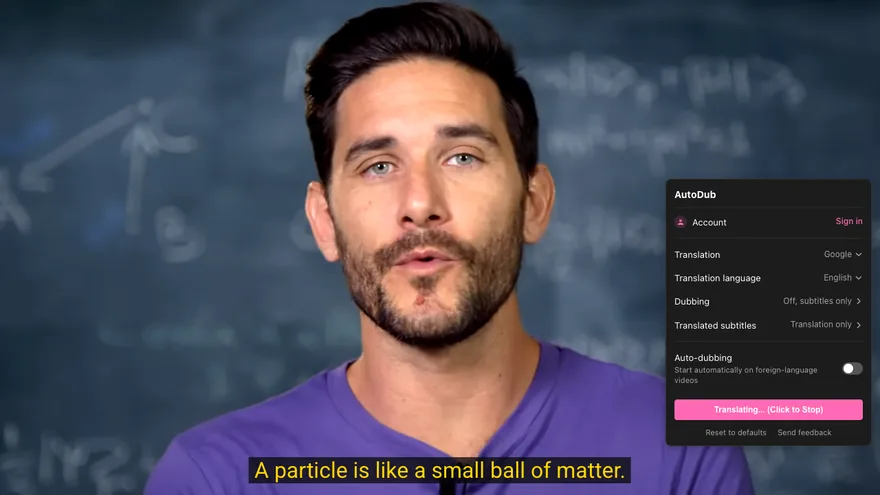
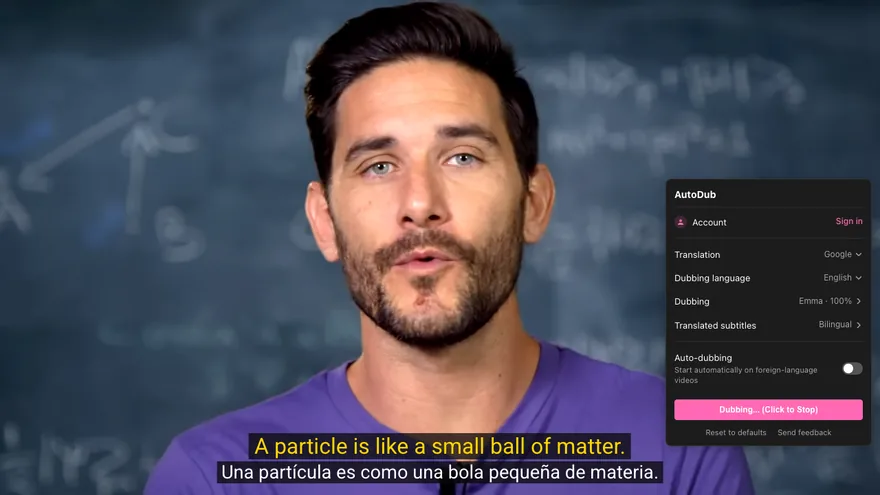
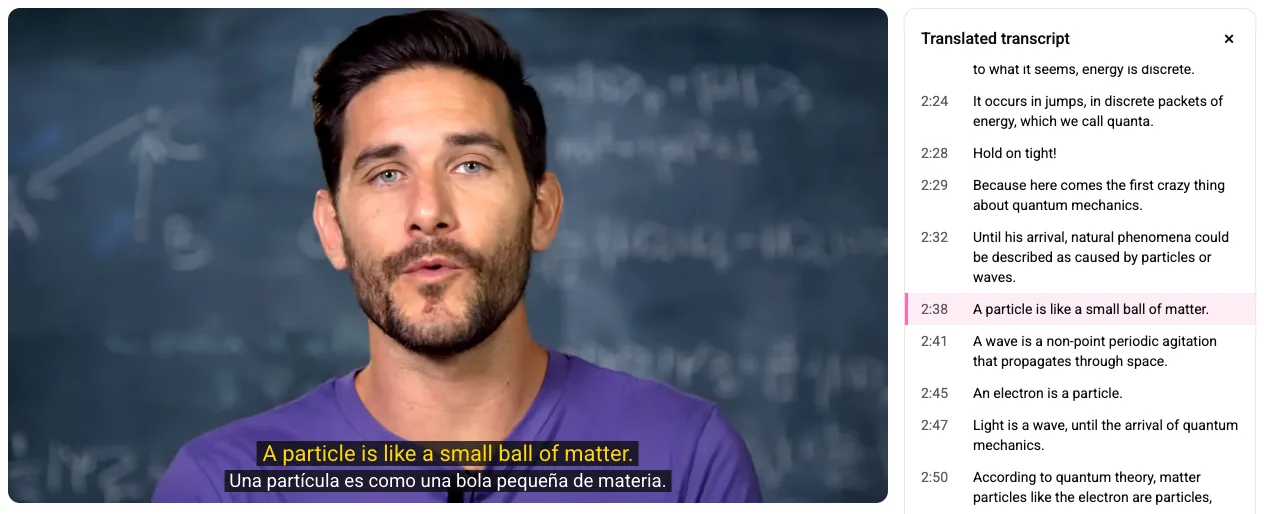
Dubbing off. You hear the speaker’s own voice, read the English line, and can check it against his Spanish underneath.
Real captures from Date un Voltio’s ¿Qué es la mecánica cuántica? at 2:40, taken on with AutoDub 1.1.1.
How to turn on dual subtitles on YouTube
Add AutoDub to Chrome, Edge, Brave or Firefox on your computer.
Open a YouTube video and click the AutoDub icon at the right end of the player controls.
Pick your language. As soon as the first translation loads, two lines appear: yours on top, the original below. Translation + original is the default.
Only want to read? Open Dubbing and switch it off. The video’s own audio plays as usual.
That’s the whole setup. For voices, volume and the other options, see how to translate a YouTube video with AutoDub.
Read along, listen along, or both
Follow a talk you half understand
If you know some Spanish, keep your eyes on the original and glance up at the translation when a sentence gets away from you. With dubbing off, you still hear the speaker’s real voice and delivery.
Listen, and keep the exact words in view
For a long tutorial, turn dubbing on and let your ears do the work. The original line is still there when you need a name, a number or a term you want to search later.
Practice a language you’re learning
Both lines plus the transcript make a handy study setup. Pause on a sentence, compare the pair, then click the line in the transcript to hear it again.
Watching anime or donghua? Here’s how to translate anime on YouTube, with settings for fast dialogue.
Move the subtitles when they cover the screen
Slides, code and on-screen text tend to sit at the bottom of the frame, right where subtitles go. Drag AutoDub’s two lines anywhere up or down the player. The position sticks from one video to the next, and Reset to defaults puts them back at the bottom.
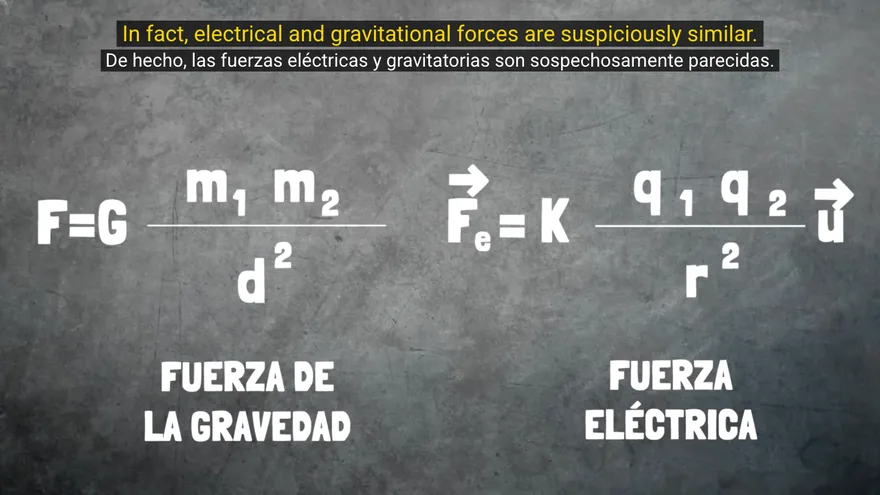
Subtitle size runs from 50% to 200%. The lines also follow the font and background you’ve picked in YouTube’s own caption options.
Read the translation next to the video
Turn on Transcript under Translated subtitles and the translated transcript opens beside the player. The current line is highlighted and scrolls along with the video. Click any line to jump there, which beats scrubbing for the part you want to hear again.
AutoDub vs. subtitle-only extensions
Plenty of extensions put two subtitle lines on YouTube. The difference shows up when you get tired of reading: AutoDub can also speak the translation, so you can switch from reading to listening without changing tools.
| Extension | Speaks the translation as the video plays | Two languages on YouTube | What its store listing focuses on |
|---|---|---|---|
| AutoDub | Yes, in 42 languages | Yes: translation on top, original below | Watching YouTube in your language: dubbing, dual subtitles, clickable transcript |
| YouTube™ Dual Subtitles | Not listed | Yes | Bilingual subtitles with custom styles |
| Language Reactor | Not listed for videos (text-to-speech for imported text) | Yes | Language learning: pop-up dictionary and playback controls |
| Immersive Translate | Not listed | Yes | Translating webpages, PDFs, ebooks and video subtitles |
Other extensions’ features are taken from their Chrome Web Store listings, checked on . “Not listed” means the listing doesn’t mention it. Listings: YouTube™ Dual Subtitles, Language Reactor, Immersive Translate.
Weighing more tools, including Trancy and LivDub? Read our YouTube translator extension comparison.
Dual subtitles in 42 languages
Choose your translation language from 42, including English, Spanish, Hindi, Arabic, Japanese and Vietnamese. The second line shows the video’s original language, whatever that is.
Under Translation, pick Google (the default) or AI. Choose AI and AutoDub translates the video with AI into natural, fluent lines in your language.
Would you rather not read at all? See how to watch YouTube in your language with the voice doing the work.
Dual subtitles on YouTube: common questions
Does YouTube have dual subtitles?
Not built in. YouTube’s player shows one subtitle language at a time. AutoDub adds the second line, so you see the original and your translation together.
Can I get dual subtitles without the AI voice?
Yes. Open Dubbing in the AutoDub panel and switch it off. You keep both subtitle lines and hear the video exactly as it is.
Which line is on top?
Your language, in yellow. The original sits underneath in white. Both lines are the same sentence, so you can compare them at a glance.
Does the video need subtitles in my language?
No. AutoDub translates the video into your language with AI and shows it above the original line.
Can I make the subtitles bigger or move them?
Yes. Subtitle size goes from 50% to 200% under Translated subtitles, and you can drag the lines up or down the player. AutoDub remembers where you put them.
Is AutoDub free?
Yes. Dual subtitles and dubbing are free, with no account, API key or daily video limit.
Which browsers does it work in?
Chrome, Edge, Brave and Firefox on your computer. Install it from the Chrome Web Store or from Firefox Add-ons.